The tutorials below have been created to assist faculty in using Accommodate for students registered with the Office of Accommodative Services.
Tutorials
- Access the Accommodate Portal
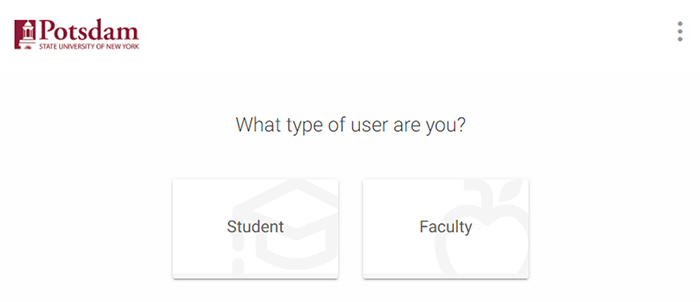
Select 'Faculty' under "What type of user are you?'
- Use your Campus Computer Account credentials to login
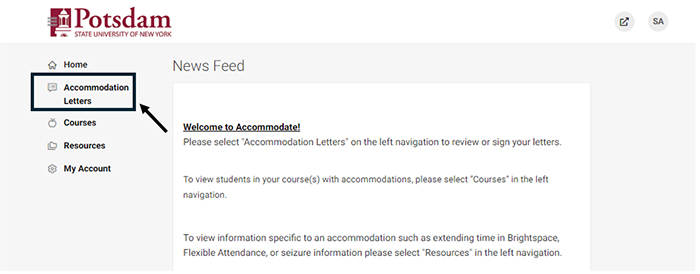
Navigate to the 'Accommodation Letters' tab on your Accommodate Homepage. Accommodation letters will first appear in your news feed when requested but once you click on them, they will move to the accommodate letters tab.
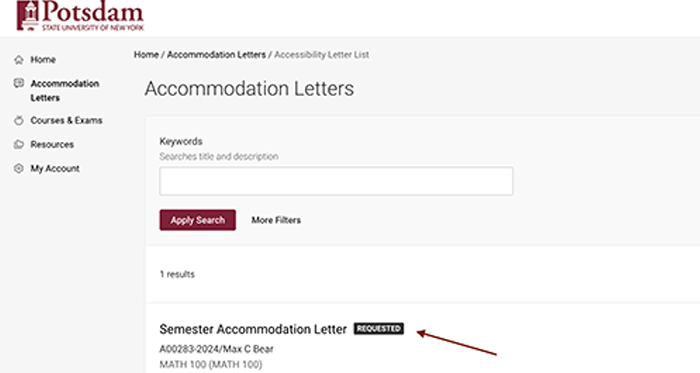
To view and sign a letter, click on 'Letter of Accommodation' for the student. This will open the student's letter listing their specific accommodations. (Note: Any letter that is not signed will have a box next to it reading 'REQUESTED')
Read over the letter and give an electronic signature to notify the OAS office that you have received your student's accommodation letter. (Note: By signing the letter the box next to the letter will change from 'REQUESTED' to 'SIGNED')
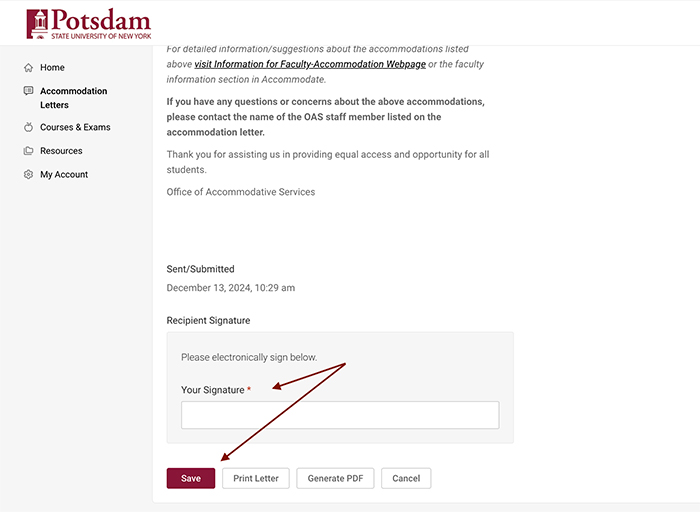
- If you have any questions regarding a students accommodation letter, please contact the individual that signed the accommodation letter.
Navigate to the 'Courses' tab from the Accommodate Homepage.
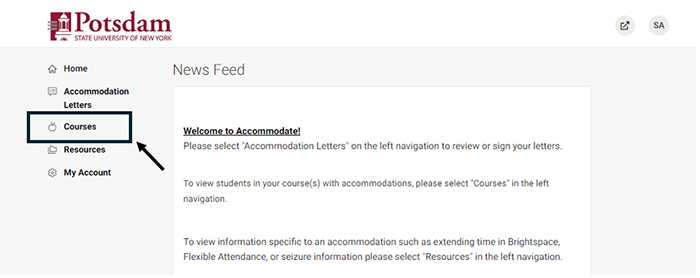
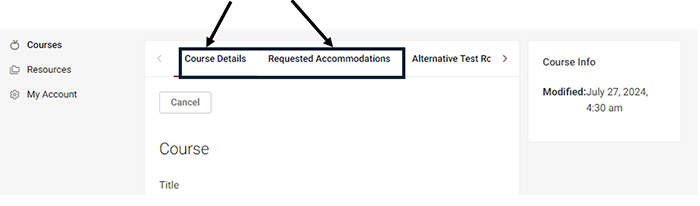
Click on the name of the course you would like to view under your course catalog. This will open a course details page for that specific course. Click on Requested Accommodations to see the students who have requested accommodations for that particular course.
To view past and scheduled exam requests, navigate to the 'Courses and Exam Requests' tab from the Accommodate homepage.
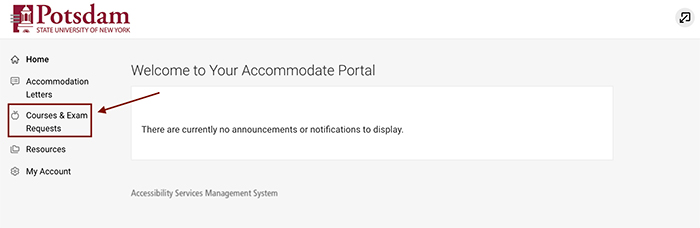
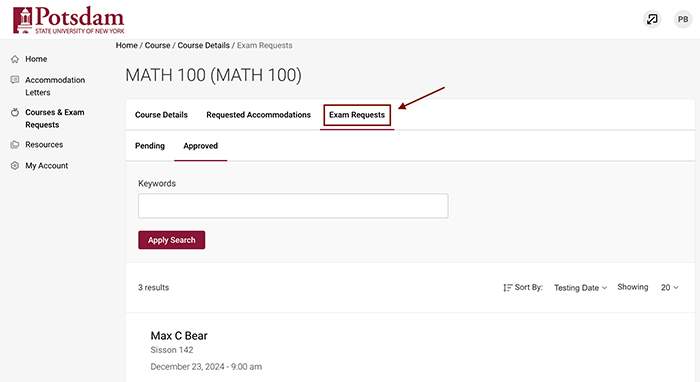
After selecting your course, click on the Exam Requests tab. All past and scheduled exam requests should be listed by the student’s name.